
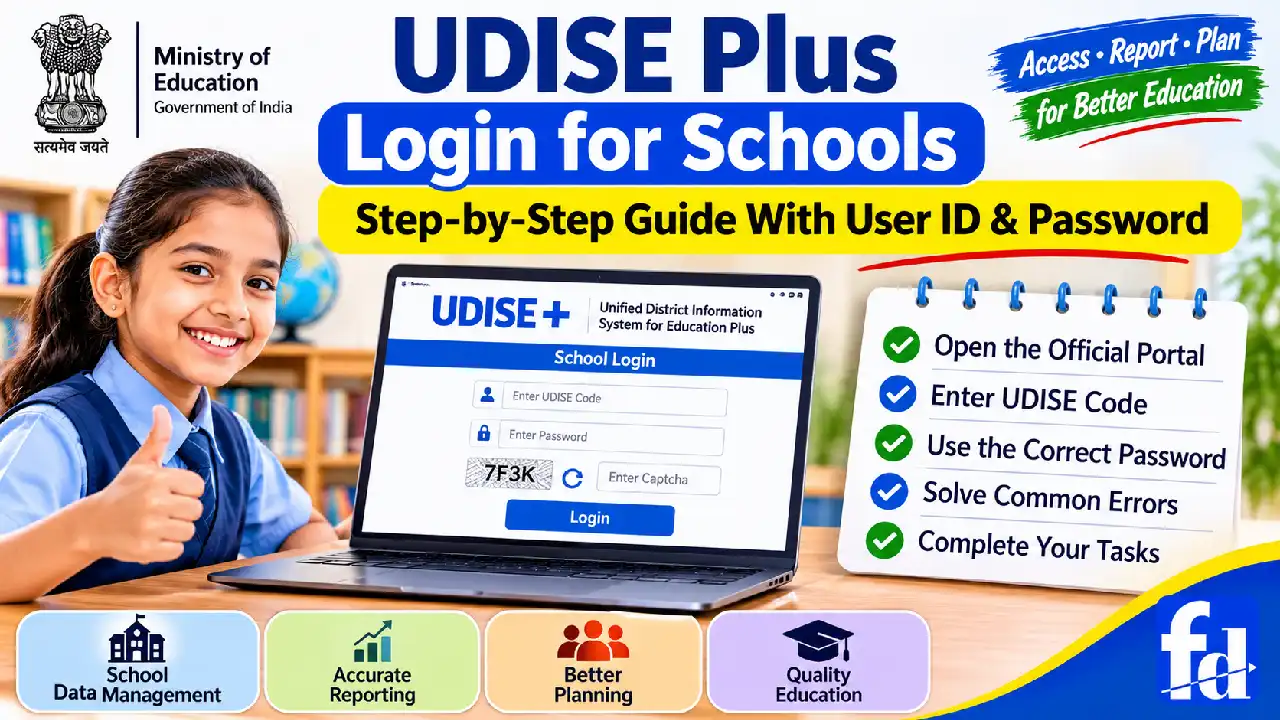
The udise plus login school user id is one of the first details school administrators need when accessing India’s official school education data system. However, many school users are unsure where to log in, which username to enter, how to obtain a password, and what to do when the portal displays an error.
This guide explains the process in simple language, from opening the official website to understanding the school dashboard, entering information, and contacting the right authority for login support.
Whether you are a headmaster, principal, teacher, school administrator, or parent trying to understand the system, this article will help you learn how UDISE Plus works and how schools can use it responsibly. It also explains the difference between school-level and administrative access, the purpose of the school identification code, and the steps to follow when login details are missing.
What Is UDISE Plus?
UDISE+ stands for Unified District Information System for Education Plus. It is a school education data system maintained by India’s Ministry of Education. It collects and manages information about schools, student enrolment, teachers, infrastructure, facilities, and other important aspects of school education.
The system supports education planning and administration at different levels, including schools, blocks, districts, states, and the national level. Government authorities use the collected information to understand school conditions, review educational progress, identify gaps, and support decisions about education services.
For example, suppose a government school has 420 students, 14 teachers, eight classrooms, and a library. Its school records help education officials understand its size, staffing, and facilities. When similar information is collected from schools across a district, officials can compare needs and plan improvements more effectively.
UDISE+ is not simply a website for checking school names. It is an education information system designed to support the collection, verification, and reporting of school-level data.
What does UDISE+ do?
The system supports several important activities:
- School identification: It associates school records with a unique identification code.
- Student enrolment reporting: It helps schools report enrolment information according to the applicable reporting requirements.
- Teacher information: It supports the collection of information about teachers and staffing.
- Infrastructure reporting: It records details about classrooms, drinking water, toilets, electricity, and other facilities.
- Education planning: It provides information that helps authorities understand school-level needs.
- Data monitoring: It supports the review and validation of submitted information.
- Education statistics: Aggregated data contributes to official reports about India’s school education system.
The exact fields, reporting requirements, and available modules may change between reporting cycles. Schools should therefore follow the instructions displayed in the current official portal rather than relying entirely on older screenshots or articles.
Why Is the UDISE Plus Login Important for Schools?
The udise plus portal login gives authorized users access to the functions assigned to their school or administrative role. Depending on the module and reporting cycle, these functions may include entering school information, updating records, reviewing data, correcting errors, and submitting information for verification.
Without the correct login details, a school may be unable to access its assigned reporting tasks. This can create delays, especially when a reporting deadline is approaching.
Consider a practical example. A school administrator is asked to review the school’s infrastructure information before the annual reporting deadline. The administrator opens the website but cannot remember the password. Instead of creating a new account or repeatedly guessing passwords, the administrator should contact the designated Block MIS coordinator or the relevant district support authority to recover access through the approved process.
This approach protects the school’s records and reduces the risk of unauthorized access.
Who uses the portal?
Different users may interact with UDISE+ for different purposes.
User | Typical responsibility |
Headmaster or principal | Oversees school information and reporting |
Authorized school data-entry operator | Enters or updates assigned school data |
Teachers | May help prepare or verify information requested by school management |
Block-level education officials | Support reporting, monitoring, and validation within their assigned roles |
District education officials | Monitor and coordinate school reporting at the district level |
State-level officials | Review and manage reporting at the state level |
Parents and students | Consult publicly available school information where available |
Access depends on the assigned role. Not every teacher, parent, or student receives a school login account. School-level credentials are intended for authorized users, while members of the public can use appropriate public information services without attempting to access restricted administrative functions.
What Is the Official UDISE Plus Login Website?
The safest starting point is the official government portal:
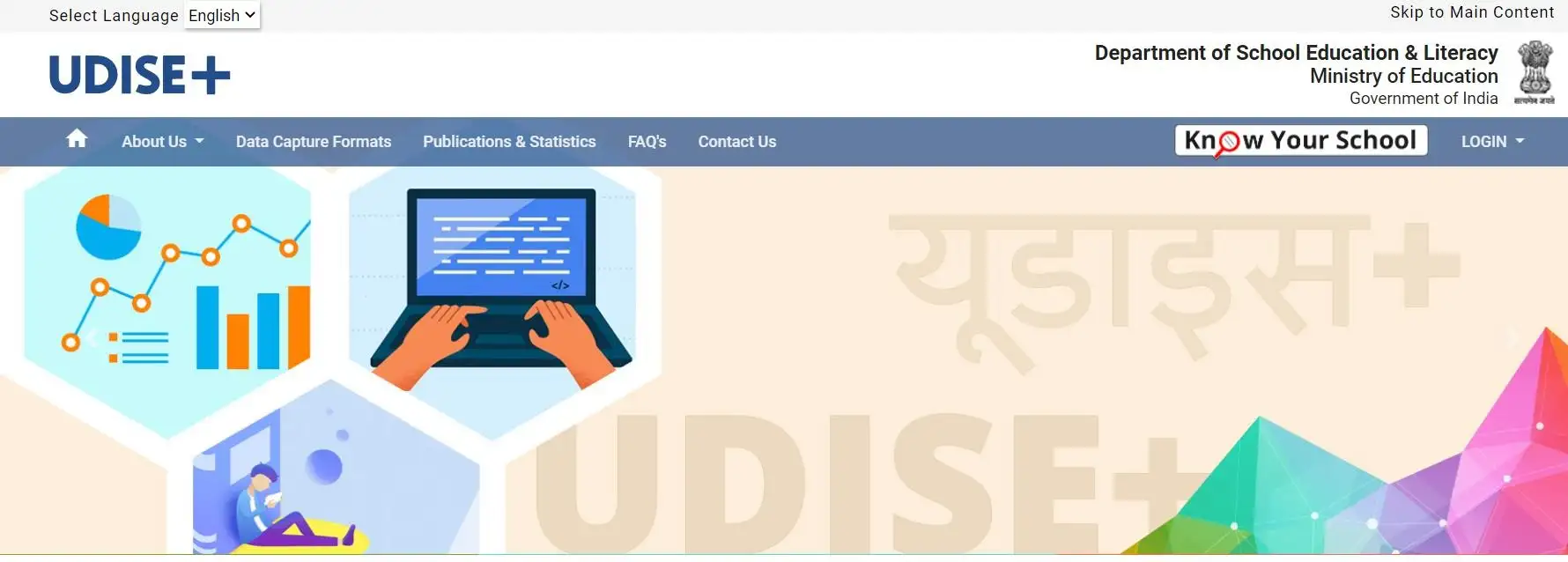
UDISE+ Official Portal
Ministry of Education, Government of India
Open the official website and select the appropriate school reporting or profile module according to your assigned task. The available modules and their login routes may differ.
The domain udiseplus.gov.in is the primary website readers should recognize. Avoid entering school credentials on websites that imitate the official portal or promise to reveal passwords.
The official website may provide access to different modules for school reporting, school profiles, and public school information. A public school search page is not the same as a restricted school data-entry login page.
Useful official links include:
Reference image guidance: For a website article, insert a genuine screenshot of the official homepage here after checking the live portal. Caption it “Official UDISE+ website — select the relevant module before entering login credentials.” Do not use an old screenshot if the website layout has changed.
How can you identify the correct login page?
Before entering a username or password, check these points:
- Verify the domain: Ensure the address belongs to the official government website or an official module linked from it.
- Check the module: Confirm that the page is intended for the school reporting task you need to complete.
- Read the instructions: Look for the username format and any instructions provided for school users.
- Check the reporting year: If the module displays an academic year or reporting cycle, make sure it is the one relevant to your task.
- Avoid unofficial shortcuts: Do not rely on random search results, forwarded messages, or third-party login pages when official navigation is available.
A page that displays the word “UDISE” is not automatically an official login page. Always verify the web address.
Understanding UDISE Plus School ID, User ID, and Password
One of the most common questions from school administrators is whether the school identification code and the login username are the same. For the official reporting module, the answer is yes: the school’s UDISE code is used as the username. The portal also states that the password is provided by the Block MIS coordinator.
Source: udiseplus.gov.in
However, it is important to understand the difference between the school’s identification number and its password.
What is the UDISE code?
A UDISE code is a unique identification code assigned to a school within the education data system. It helps distinguish one school from another and connects the school’s information to its official record.
The code is used in school identification and reporting processes. It should not be confused with a student’s admission number, a teacher’s employee ID, a school registration certificate number, or a personal login account.
For example, if a school has been assigned a UDISE code, an authorized user generally enters that code in the username field of the reporting module. The example below is illustrative and is not an actual school’s login information.
Login field | What to enter |
Username | The school’s assigned UDISE code |
Password | The password issued through the authorized process |
CAPTCHA | The characters or verification response displayed on the page |
Login button | Select after checking all entered details |
How can you find your UDISE Plus school ID?
If you do not know the school’s code, follow these steps:
- Open the official Know Your School portal.
- Look for the available school search options.
- Search using the school name, location, or other available details.
- Check the matching school record carefully.
- Confirm the school name, district, state, and other identifying information before using the code.
If the school does not appear in the public search, contact the relevant Block or District MIS office. A missing search result does not automatically mean the school has never been registered. The search criteria, data availability, school status, or reporting arrangements may affect what is displayed.
Important: Never guess the code or use the identification number of a nearby school. Incorrect identification details can lead to failed login attempts or confusion about which school’s information you are accessing.
How do you get the UDISE Plus password?
School users should obtain their credentials through the authorized education administration process. The official reporting module identifies the Block MIS coordinator as the source of the school password. It also advises users to contact Block or District MIS if they forget their username or password or need to update their mobile number or other details.
Source: udiseplus.gov.in
If you are a new headmaster or an authorized school operator, ask the relevant coordinator to confirm the correct account and current access procedure.
Do not use a password shared by another school, and do not assume that the password is the same as your email, school management software, or another government portal.
UDISE Plus Login for Schools: Step-by-Step Guide
The school login process is straightforward when you have the correct code, password, and access to the official reporting module. Follow the steps below carefully.
Step 1: Open the official website
Visit the UDISE+ official portal.
From the available options, select the appropriate school reporting or profile module. You can also use the official reporting module if that is the module assigned to your school.
The exact route may vary according to the task and the current portal setup.
Step 2: Open the school login page
On the reporting module, locate the login section. The page provides fields for a username, password, and CAPTCHA.
Before continuing, check that you have opened the correct module. Some UDISE+ services are designed for public information, while others are intended for authorized school or administrative users.
Step 3: Enter the school UDISE code
Enter the school’s assigned UDISE code in the Username field.
Check the digits carefully. A typing error can prevent access even when the password is correct.
For example, if your school has a code beginning with zero, do not remove that zero. Enter the code exactly as officially assigned.
Step 4: Enter the password
Type the password provided through the authorized process.
Passwords may contain uppercase letters, lowercase letters, numbers, and special characters. Check that Caps Lock is not affecting your entry and that no extra spaces have been included.
If the password does not work, avoid repeatedly trying random combinations. Verify the username and contact the appropriate coordinator if necessary.
Step 5: Complete the CAPTCHA
A CAPTCHA is a verification step intended to help distinguish legitimate users from automated requests.
Read the displayed characters carefully and enter them into the CAPTCHA field. Some login pages may also offer alternative verification options, depending on the interface.
If the CAPTCHA is unclear, use the page’s refresh option when available and enter the newly displayed characters.
Step 6: Select Login
Review the username, password, and CAPTCHA before submitting the form.
Select the login button and wait for the system to respond. If the credentials are accepted, the portal should take you to the relevant dashboard or next page for your account.
If the page reports an error, read the message before taking further action. The issue may involve incorrect credentials, a CAPTCHA mismatch, an expired session, or a temporary technical problem.
Step 7: Review the dashboard
After successful login, check the information displayed for your school and the tasks available to your account.
Depending on the module and reporting cycle, you may see school profile details, data-entry sections, validation messages, reporting status, or other assigned functions.
Do not assume that every school account will display identical menus. Available functions can vary by module, permissions, and reporting requirements.
Step 8: Complete the required school work
Open the relevant section and follow the on-screen instructions.
For instance, if you are asked to review school facilities, compare the information shown in the portal with the school’s actual records. If you are asked to verify enrolment information, use the approved school records rather than estimates.
Save your work where the portal provides a save option. Before final submission, review the entries and resolve any validation messages.
Quick login checklist
Use this checklist before signing in.
- Open the official UDISE+ website or linked module
- Confirm the correct school and reporting module
- Keep the school’s UDISE code ready
- Use the authorized password
- Enter the current CAPTCHA correctly
- Review the dashboard and assigned tasks
First-Time UDISE Plus Login: What Should New School Users Do?
First-time access can be confusing, especially when a new headmaster takes charge or a school appoints a different person to manage data entry.
The most important step is to confirm the correct account and password with the authorized coordinator. Do not assume that the school can create its own account using any email address or phone number.
Instructions for a new headmaster or principal
If you have recently joined a school, follow this process:
- Confirm the school’s official UDISE code.
- Contact the Block MIS coordinator or the designated support office.
- Explain that you are the newly appointed headmaster or principal.
- Ask how the existing school account should be accessed or transferred under the current procedure.
- Complete any identity or authorization checks required by the department.
- Sign in and verify the school’s details before making changes.
The udise plus headmaster login is not necessarily a separate account type for every module. In many cases, the headmaster is responsible for overseeing the school’s authorized reporting activities, while the portal’s access arrangements determine the available functions.
For example, a newly appointed principal may discover that the previous headmaster’s contact details are still associated with the account. The appropriate action is to request an authorized update rather than attempting to bypass the existing access controls.
What should a school do if the password was never received?
Contact the relevant Block MIS coordinator and explain that the school requires its login credentials. Keep the school’s name, UDISE code, district, and relevant authorization details ready.
If the Block MIS coordinator cannot resolve the issue, ask which District MIS contact or official support channel handles school access in your area.
The exact procedure for issuing or resetting a password may depend on the module and current administrative instructions. Always follow the procedure communicated by the responsible authority.
What Can Schools Do After Logging In?
The main purpose of signing in is to complete the tasks assigned to the school, not merely to open the dashboard. The available functions depend on the module, the reporting cycle, and the user’s permissions.
School profile and infrastructure information
The profile module supports the reporting of school information and facilities. Depending on the applicable form, the information may include:
- School name and identification details
- Management and school category
- Classes or grades offered
- Number of classrooms
- Drinking water availability
- Toilet facilities
- Electricity and other infrastructure
- Library, sports, and other facilities
- Other information requested in the reporting form
For example, if a school has recently repaired a toilet block, the responsible user should check the reporting instructions and update the relevant information when required. The user should not mark a facility as available merely because it is planned or under construction.
Student and teacher information
Depending on the module and reporting cycle, the portal may provide access to forms or tasks involving student enrolment, teacher details, and related school statistics.
These entries should be prepared using verified school records. If the school has 350 enrolled students, the figure reported should reflect the applicable instructions and reporting date, not an estimate based on the previous year’s total.
Personal information should be handled carefully. Only authorized users should access or change records, and school staff should follow applicable departmental privacy and data-protection rules.
Data validation and submission
Some forms include required fields or checks to identify missing or inconsistent information. A school may need to correct such issues before submitting its data.
For instance, if the total number of students across the reported classes does not match the overall figure, the system may flag a discrepancy. The responsible user should check the underlying records and correct the figures instead of entering arbitrary values to clear the warning.
Saving and submitting are not always the same action. Follow the instructions on the relevant screen and check the submission status before assuming that the school’s work is complete.
UDISE Plus Login Not Working? Common Problems and Solutions
Even when school users enter the correct details, they may sometimes face login problems. The issue may be caused by an incorrect username, an outdated password, a CAPTCHA error, browser settings, an expired session, or a temporary problem with the portal.
If you experience a udise plus login not working issue, start by checking the details you entered. Then follow the troubleshooting steps below instead of repeatedly submitting the login form.
1. Incorrect username or UDISE code
The official reporting module uses the school’s UDISE code as the username. If the code is entered incorrectly, the system may reject the login attempt.
What to do:
- Check the code against the school’s official records.
- Make sure you have not missed or changed any digits.
- Preserve any leading zeros in the assigned code.
- Confirm that you are using the correct school’s credentials.
- Contact the Block MIS coordinator if the username remains unrecognized.
Example: A school administrator types one digit incorrectly while entering the school’s code. Even if the password is correct, the login may fail. Checking the code against the official school record is the best first step.
2. Incorrect or forgotten password
A password error can occur when a user enters an outdated password, mistypes a character, or uses credentials that belong to another account.
Try entering the authorized password carefully. Check Caps Lock, keyboard language, and any special characters.
If you have forgotten the password, use the recovery method provided by the official module if one is available. Otherwise, contact the Block MIS coordinator or the relevant District MIS office for assistance.
Do not rely on unverified websites that claim to generate, retrieve, or reveal school passwords.
3. UDISE Plus CAPTCHA issue
A udise plus captcha issue occurs when the verification text is unclear, entered incorrectly, or no longer matches the current CAPTCHA displayed on the page.
Try these steps:
- Refresh the CAPTCHA using the option provided on the page.
- Read the new characters carefully.
- Check whether uppercase and lowercase characters need to be entered exactly as displayed.
- Enter the CAPTCHA again without unnecessary spaces.
- Submit the form promptly rather than leaving it open for a long time.
If the CAPTCHA continues to fail, refresh the login page and try again. You can also test the portal in an updated browser or a private browsing window to check whether an extension or cached page is interfering.
Do not share your password with someone who offers to solve the CAPTCHA for you.
4. The login page is not opening
Sometimes the login page may load slowly, display an incomplete form, or fail to open.
Possible causes include a weak internet connection, browser compatibility issues, maintenance, or temporary server problems.
Try the following:
- Check whether other websites are loading normally.
- Open the official UDISE+ homepage and navigate to the module again.
- Refresh the page.
- Update your browser.
- Try a different supported browser.
- Temporarily disable browser extensions that may interfere with page loading.
- Try again later if the official service appears unavailable.
If the problem continues, record the exact error message and the time it occurred. This information can help the relevant support team investigate.
5. Account or school details need updating
A school may face difficulty signing in after a change in leadership, contact details, or other administrative information.
Do not create an unapproved replacement account or change records through unofficial channels. Contact the authorized Block or District MIS office and explain what has changed.
Be ready to provide the school’s name, UDISE code, district, and any required proof of authorization. Send sensitive documents only through an approved channel.
Troubleshooting table: Quick solutions
Problem | Recommended action |
Username not accepted | Verify the official school UDISE code |
Password incorrect | Check the password and contact the authorized coordinator if needed |
CAPTCHA keeps failing | Refresh the CAPTCHA and re-enter the displayed characters |
Login page does not load | Check the connection, browser, and official portal |
Dashboard does not appear | Refresh the page and sign in again if the session has expired |
School details are incorrect | Request an authorized correction |
Password or contact details need resetting | Contact Block or District MIS support |
Reporting form displays an error | Review required fields and validation messages |
UDISE Plus Headmaster Login: Roles and Responsibilities
The headmaster or principal plays an important role in making sure that school information is complete, consistent, and reported within the required period.
Although the exact access rights depend on the module, the headmaster is often responsible for coordinating the school’s reporting work and ensuring that the information supplied by staff is checked before submission.
What should a headmaster check after logging in?
A useful review process includes the following steps:
- Confirm school identity: Check the school name and identification details.
- Review assigned tasks: Identify the forms or reporting sections that need attention.
- Check source records: Compare portal entries with the school’s approved records.
- Resolve discrepancies: Investigate missing figures, inconsistent totals, or incorrect details.
- Review the final entries: Check all required fields before submitting.
- Confirm the status: Make sure the portal reflects the correct saved or submitted status.
- Keep a record: Maintain an appropriate record of completed reporting activities and any unresolved issues.
For example, a headmaster may ask a teacher to help verify the number of students in a particular grade. The teacher can provide the relevant information through the school’s approved process, while the authorized person remains responsible for the accuracy and submission of the final report.
Can teachers use the headmaster’s credentials?
Teachers should not automatically use the headmaster’s username and password simply because they are helping with school reporting.
Access should follow the school’s authorization arrangements and the current portal rules. If a teacher is officially assigned data-entry responsibilities, the school should confirm the appropriate access method with the relevant coordinator.
Sharing credentials can make it difficult to determine who made a change and can expose school records to unauthorized access. Each person should work within the permissions and responsibilities assigned to them.
UDISE Plus District Login and State Login Explained
UDISE+ is designed to support reporting and data verification at several administrative levels. School users, Block MIS staff, district officials, and state officials may have different responsibilities and access permissions.
The official portal describes a process in which school information is entered and submitted, then validated by designated officials at the block, district, and state levels. This helps education authorities review information beyond the individual school.
Source: udiseplus.gov.in
What is the UDISE Plus district login?
The udise plus district login is associated with the functions assigned to authorized district-level officials. These functions may include monitoring reporting progress, reviewing school information, checking discrepancies, and coordinating with schools or block-level staff.
District access is different from school access. A school should not use district-level credentials to complete its normal reporting tasks unless the department has specifically authorized that access.
For example, if a district official notices that a school has not completed a required form, the official may contact the school or the responsible Block MIS coordinator to resolve the issue. The school should correct its own records through the authorized process rather than trying to enter a district account.
What is the UDISE Plus state login?
The udise plus state login is intended for authorized state or Union Territory officials, depending on the module. These officials may monitor reporting progress across districts, coordinate data verification, and review education information at the state level.
The precise functions available depend on the portal module and the user’s permissions.
A state-level official may need to review whether districts have completed the required reporting tasks. The official’s access supports this oversight, while schools remain responsible for ensuring their own data is accurate.
How can officials identify their correct access route?
Start from the official UDISE+ homepage and select the appropriate module or administrative login option. The portal has provided separate routes for schools and different administrative levels, and these routes can change over time.
Source: udiseplus.gov.in
If you are unsure which login option applies to your role, contact your department’s designated MIS support team. Do not assume that a school username will work for a district or state account.
How to Enter and Submit School Data Correctly
Successful login is only the first step. Accurate reporting requires schools to prepare the right information, check it carefully, and follow the submission instructions for the relevant academic year.
Prepare records before starting data entry
Before opening a reporting form, gather the school records needed to complete it. This can reduce errors and help the responsible staff member work more efficiently.
Depending on the reporting requirements, these records may include:
- Current school profile and recognition details
- Class-wise student enrolment records
- Teacher and staff information
- Classroom and infrastructure details
- Information about drinking water, toilets, electricity, and other facilities
- Records needed to resolve differences between existing entries and current school conditions
Use the official instructions for the reporting year to decide which documents and figures are required. Do not assume that every field from an earlier reporting cycle will remain unchanged.
Check figures before submission
A simple example shows why this matters.
Suppose a school reports the following enrolment:
Class group | Students |
Classes 1–5 | 180 |
Classes 6–8 | 105 |
Classes 9–10 | 75 |
Total | 360 |
If the school’s verified records show 360 students, but the form displays 350, the responsible person should identify where the difference occurred. The error might be in a class total, a missing entry, or the overall figure.
The correct response is to check the underlying records and fix the error. Entering a number simply to make the validation message disappear can make the final report inaccurate.
The figures in this example are illustrative and do not represent an actual school.
What should you do when a form shows a validation error?
Read the complete message before making changes. Check whether the portal identifies a missing field, an inconsistent total, an invalid value, or another issue.
Then:
- Identify the field or section mentioned in the message.
- Compare it with the school’s verified records.
- Correct the entry if it is wrong.
- Save the form if a save option is available.
- Run the validation again, if the portal provides that function.
- Follow the official submission process.
- Check the status displayed by the portal.
If the information is correct but the system continues to reject it, contact the designated support authority. Provide the error message and relevant form details, but do not send your password.
Can submitted school data be changed?
Whether a submitted entry can be edited depends on the module, the reporting stage, and the permissions available to the user.
If you discover a mistake after submission, do not assume the form can be reopened automatically. Check the portal for an approved correction option or ask the Block or District MIS office how to request a correction.
This is particularly important when a reporting deadline has passed or the information has already been reviewed by another administrative level.
UDISE Plus Statistics: Why Accurate School Data Matters
UDISE+ is important because it provides a common source of school education information for planning, monitoring, and official statistics.
The Ministry of Education’s UDISE+ report for the 2023–24 academic year recorded 1,471,891 schools, 248,045,828 student enrolments from pre-primary to higher secondary, and 9,807,600 teachers. These figures illustrate the scale of the education system covered by the reporting framework.
Source: Education Government of India
UDISE+ national figures: 2023–24
Official Ministry of Education statistics
14.72 lakh Schools
24.80 crore Student enrolments
98.08 lakh Teachers
Source: Ministry of Education, UDISE+ 2023–24 report. Figures are rounded for readability (Education Government of India).
These figures are useful because they show why consistent reporting is necessary. When schools report information correctly, education authorities can build a clearer picture of enrolment, staffing, and school facilities.
The figures above are for 2023–24, not the current academic year. For newer statistics, consult the official Ministry of Education statistics page and the UDISE+ portal.
How can UDISE+ data help education planning?
Accurate school information can help authorities:
- Understand where schools and students are located.
- Review staffing patterns and teacher availability.
- Identify gaps in basic school facilities.
- Compare school-level and district-level information.
- Monitor reporting progress and investigate inconsistencies.
- Prepare education statistics for planning and public reporting.
For instance, if verified data shows that several schools in a particular area lack adequate classroom facilities, education officials can use that information as part of their planning and review process.
However, the data alone does not guarantee that resources will be allocated or that a particular school will receive funding. Decisions depend on the relevant schemes, budgets, policies, and administrative processes.
UDISE Plus Login: Account Security and Best Practices
School accounts may provide access to important institutional information. Protecting these accounts is therefore part of responsible school administration.
How should schools protect login credentials?
Follow these basic security practices:
- Keep passwords confidential. Share credentials only as permitted by official procedures.
- Use official websites. Do not enter passwords into links received from unknown sources.
- Avoid public computers. If you must use a shared computer, sign out and close the browser when finished.
- Check the website address. A familiar logo does not prove that a website is genuine.
- Protect school records. Do not download or distribute personal information unless authorized.
- Report suspicious activity. Contact the relevant MIS authority if you suspect unauthorized access.
- Follow password instructions. Change or reset credentials only through an approved process.
Never publish a school’s password in a public WhatsApp group, online forum, or website comment. If credentials have been exposed, contact the authorized support team promptly.
Is it safe to use UDISE+ on a mobile phone?
You can access web pages on a mobile device if the relevant portal supports your browser and the page displays correctly. However, some forms may be easier to complete on a desktop or laptop.
If you use a mobile phone:
- Open the official website directly.
- Check that the page is displaying properly.
- Avoid saving passwords on a shared device.
- Do not use public Wi-Fi for sensitive work when a safer connection is available.
- Sign out after completing your tasks.
A larger screen can also help when reviewing tables, checking totals, and completing longer data-entry forms.
UDISE Plus for Parents, Students, and US Readers
Although the login process is mainly intended for authorized school staff and education officials, other readers may also benefit from understanding the system.
Can parents and students log in to UDISE+?
Parents and students generally do not need school administrative credentials simply to look up publicly available school information.
The Know Your School portal is a useful starting point for finding school information that is publicly available. Search results and available details may depend on the records maintained by the portal.
For example, a parent comparing schools can use public school information to identify a school and review the details available for it. This is different from accessing restricted school reporting forms.
If a parent needs information about an individual student’s admission, attendance, marks, or school records, the appropriate contact is normally the school or the relevant student information service. UDISE+ should not be assumed to provide unrestricted access to personal student records.
How does UDISE+ relate to school data systems in the United States?
UDISE+ is India’s school education information system. It is not the login portal used by American schools.
Readers in the United States who are researching international education systems may find the general concept familiar: education authorities collect information about schools, students, teachers, and facilities to support planning and reporting. However, account credentials, reporting rules, school identifiers, and privacy requirements differ between countries.
For US-specific school information, use the relevant state education department, local school district, or official federal education resources. Do not use Indian school login instructions to access a US school system.
Actionable Takeaways: UDISE Plus School Login Checklist
Before you begin or finish a school reporting task, use this checklist to avoid common mistakes.
- Use the official UDISE+ website or its linked module
- Verify the school’s UDISE code before logging in
- Obtain the password through the authorized process
- Resolve CAPTCHA and browser problems carefully
- Prepare verified school records before data entry
- Check totals, required fields, and validation messages
- Follow the correct submission and correction procedures
- Protect credentials and student information
- Contact Block or District MIS when access problems remain
- Check official sources for current reporting deadlines and statistics
Conclusion
UDISE+ plays an important role in collecting and managing school education information across India. Understanding the login process helps authorized school users access the correct module, complete reporting tasks, and maintain accurate school records.
The most important points are straightforward: use the official website, enter the school’s correct UDISE code, obtain the password through the authorized process, and follow the instructions for the relevant reporting cycle. If the login fails or school details need correction, contact the Block or District MIS support team rather than relying on unofficial websites or unverified advice.
Accurate data entry is just as important as successful login. By checking school records, resolving validation errors, protecting credentials, and confirming submission status, school administrators can help keep their information reliable and useful for education planning.
For your next step, visit the official UDISE+ portal, select the appropriate module, and keep the school’s verified identification details ready before signing in.
FAQs
What is the official UDISE Plus login website?
Start at udiseplus.gov.in and select the correct module for your task. The official reporting module is also available at UDISE+ Reports.
What is the UDISE Plus school user ID?
For the official reporting module, the school’s assigned UDISE code is used as the username. Check the school’s official records or use the public school search service to confirm the code.
Source: udiseplus.gov.in
How do I get my UDISE Plus password?
The official reporting module states that the password is provided by the Block MIS coordinator. Contact the relevant Block or District MIS office if you have not received the password or cannot access your account.
Source: udiseplus.gov.in
What should I do if I forget my password?
Use the official recovery option if available for your module. Otherwise, contact the authorized Block or District MIS support team and follow its instructions. Never rely on a third-party password generator.
Why is my UDISE Plus login not working?
Common reasons include an incorrect UDISE code, a wrong password, a CAPTCHA mismatch, an expired session, or a temporary website problem. Verify the details, refresh the page, and follow the official recovery process if the issue continues.
How do I fix a UDISE Plus CAPTCHA error?
Refresh the CAPTCHA, enter the newly displayed characters, and check for typing errors. If the problem continues, reload the login page or try an updated browser.
Is the UDISE code the same as the school registration number?
Not necessarily. The UDISE code is the school’s identification code within the UDISE+ system. A school may have other registration or affiliation numbers that serve different purposes.
Can a teacher log in using the headmaster’s account?
Teachers should follow the school’s approved access arrangements. They should not automatically share or use the headmaster’s password. Contact the designated coordinator to confirm the correct access method for an authorized data-entry task.
What is the difference between school login and district login?
School access is used for the functions assigned to the school, while district access is intended for authorized district-level responsibilities. The available features depend on the module and the user’s permissions.
Can I check a school’s UDISE code without logging in?
You can start with the public Know Your School portal. Search for the school and verify the matching details before using the code.
Can I change school information after submitting it?
Correction options depend on the module and the current reporting stage. Check whether an approved correction option is available, or contact the relevant MIS authority.
Is UDISE+ available to private schools?
UDISE+ covers recognized schools across applicable school categories, including government and recognized private schools. The exact reporting requirements depend on the school’s status and the instructions for the relevant reporting cycle.
Source: udiseplus.gov.in
What does UDISE+ stand for?
UDISE+ stands for Unified District Information System for Education Plus. It is maintained under India’s Ministry of Education and supports school education data collection and reporting.
Where can I find official UDISE+ statistics?
Use the UDISE+ official portal and the Ministry of Education statistics page. Check the academic year and report type before quoting figures.
What should I do if my school’s details are incorrect?
Compare the portal information with the school’s verified records. Contact the authorized Block or District MIS office if the details require an administrative correction or cannot be changed through the available module.

Hey, I am Sachin Ramdurg. I run and manage futuredecider.com website that helps students, graduates, and professionals, to find and decide on their future career with ultimate future career advices and future career guides. I have an overall 12+ years of career guidance experience in multiple domains which has helped multiple students, graduates, and professionals to find the best career path for their future.