

The UDISE Plus mobile app helps users access school information and, through specific official applications, support school location and image collection under India’s school education data system.
If you are searching for UDISE plus mobile app download android, it is important to identify the correct app before installing anything, because the official UDISE+ ecosystem includes different tools for different purposes.
Parents may want to check school details, while school heads and education officials may need authorized access to school records or location-capture facilities. This guide explains how to find the official apps, understand their features, check login requirements, and handle data entry when internet access is limited.
Although mobile access can make school-related work easier, one important distinction must be understood from the beginning: a school information app is not necessarily a school data-entry app.
The official Know Your School application provides school information, while the separate GIS Capture application is designed to collect school locations and images. Do not assume that either app supports offline entry of every UDISE+ Data Capture Format (DCF) field without checking the instructions for the relevant academic year and user role.
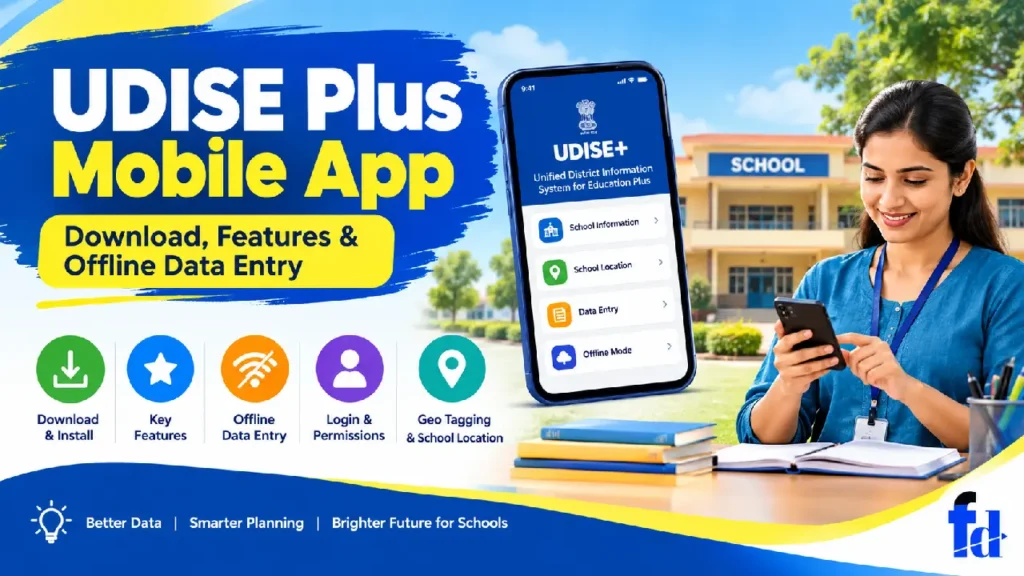
What Is the UDISE Plus Mobile App?
UDISE+ stands for Unified District Information System for Education Plus. It is India’s school education data system, used to collect and manage information about schools and support education planning, monitoring, and reporting.
The system brings together information such as school identification, management type, enrollment, teachers, facilities, and other school-level details. The exact information collected depends on the applicable reporting format and academic year.
The phrase UDISE Plus mobile app can refer to more than one application associated with this system. Understanding the difference is essential before downloading an app or trying to sign in.
The main official mobile applications
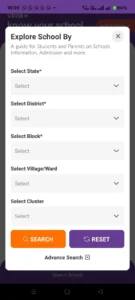
Link: UDISE+ — Know Your School App
1. UDISE Plus – Know Your School
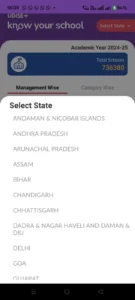
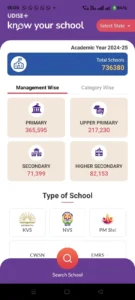
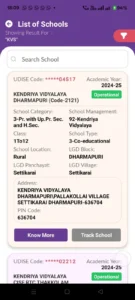
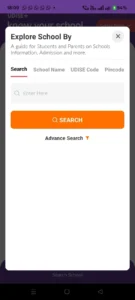
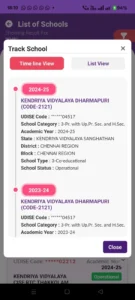
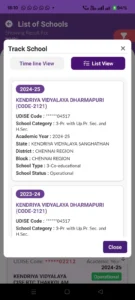
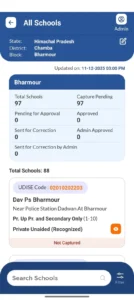
This application is designed to help parents, researchers, and other interested users view school-related information, including the school name, address, management type, medium of instruction, teachers, students, and infrastructure details.
Official developer: National Informatics Centre (NIC)
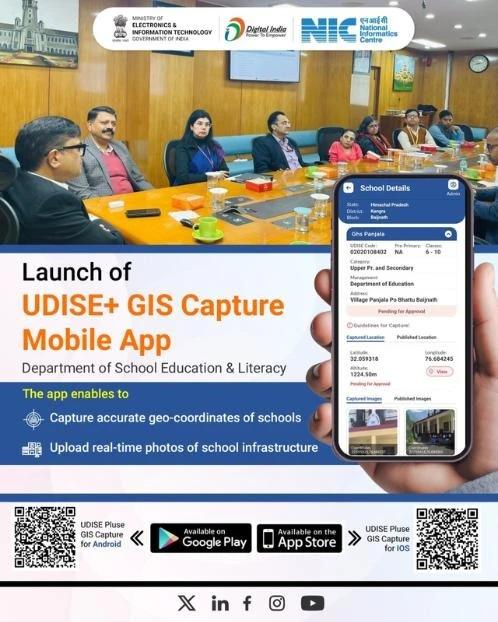
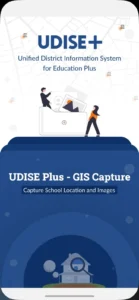
2. UDISE Plus – GIS Capture
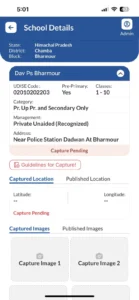
This application is intended for collecting the geographical location and images of schools registered in UDISE+. Authorized school and education-administration users can use it for the location-capture process.
The official description explains that captured information is subject to district-level approval before it is published for use by relevant officials and other services.
Official developer: National Informatics Centre (NIC)
Important: These are different applications with different purposes. The existence of an official mobile app does not mean that all school reporting, annual DCF completion, or data correction tasks can be performed through it.
Who should use these applications?
Different users have different needs.
User | Most relevant use |
Parents | Check publicly available school information using Know Your School |
Students | Look up school details where available |
Teachers | Help with school information or assigned tasks under authorized procedures |
Head teachers and principals | Use the official reporting system and any mobile tools assigned to their role |
Block and district officials | Support verification, school location capture, and approval workflows where authorized |
Researchers | Consult available school information for education-related analysis |
For example, a parent who wants to confirm a school’s management type should start with the public information application. A school official assigned to verify the school’s coordinates should first confirm whether the GIS Capture application is required.
These two tasks should not be confused with completing the school’s annual data submission.
How to Download the UDISE Plus Mobile App on Android
Downloading the correct application is the first step. The safest option is to use the official Google Play listing or the download facility linked from the government portal.
The official UDISE+ website also provides access to the Know Your School service and the GIS Capture portal.

Step 1: Identify which app you need
Before installing anything, decide what you want to do.
- To find school details, choose Know Your School.
- To capture school coordinates and campus images, check whether your role requires GIS Capture.
- To complete the school’s annual data submission, use the official UDISE+ reporting portal or the specific module designated by your education department.
A common mistake is to download the first app that appears in a search result and then look for features it was never designed to provide.
Step 2: Open the official download page
Use one of these verified links:
Know Your School — School information and public searches
Open the official Google Play listing
GIS Capture — School location and image collection
Open the official Google Play listing
Step 3: Verify the developer
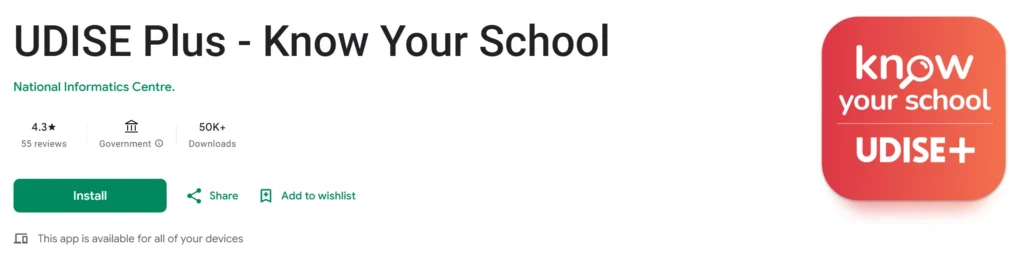
On the Google Play page, check that the developer is National Informatics Centre and that the application name and description match your intended task.
Do not rely only on an app’s logo or name. Unofficial applications can use similar words and graphics.
Step 4: Install and open the application
Tap Install, wait for the installation to finish, and open the app. Follow the on-screen instructions.
For GIS Capture, you may need an existing authorized UDISE+ account. The official listing states that registered UDISE+ users can sign in, so a separate registration process is not normally followed for this application.
Step 5: Check the app version
If the app is already installed, open its Play Store page and check whether an update is available.
The current version and minimum Android requirements can change. Check the live listing rather than relying on a fixed Android version or a version number copied from an older guide.
Is There an Official UDISE Plus App APK?
An APK is an Android application installation package. Some websites offer APK files for direct installation, particularly when a user cannot access Google Play.
However, downloading an APK from an unknown website is not recommended for a government education application.
A modified or outdated installation file could expose the device to malware, display misleading login screens, or fail to work with the current UDISE+ system.
If you encounter a website offering a udise plus app apk, take these precautions:
- Prefer the official Google Play listing.
- Check the developer’s name and the app’s purpose.
- Use the official UDISE+ website to find the appropriate download page.
- Avoid APK files shared through unknown messaging groups or file-sharing websites.
- Never enter school credentials into an unverified application.
- Do not disable Android’s security protections simply to install a file.
The official UDISE+ website is a useful starting point for checking available services. For GIS Capture, you can also visit the official GIS Capture portal, which provides download information for Android and iOS.
Main Features of the UDISE Plus Mobile Apps
The available features depend on which application you install. Knowing the difference will help you avoid wasting time searching for functions that belong to another module.
1. School information through Know Your School
The Know Your School application helps users find details about schools in India.
Depending on the available record, information can include:
- School name and address
- School management category
- Medium of instruction
- Student and teacher counts
- Infrastructure facilities
- Other school-related details available through the UDISE+ database
For example, a parent comparing two nearby schools may use the service to check their recorded management types and available infrastructure information.
However, these details should be treated as officially reported school information, not as a substitute for visiting a school, checking its recognition status with the relevant authority, or speaking with its administration. A listing alone does not establish that every reported detail is current.
2. School location and image capture
The GIS Capture app supports the collection of a school’s geographical coordinates and images.
This helps maintain location information for registered schools and supports mapping and administrative verification.
For instance, if a school has moved to a new campus, its authorized users may need to follow the applicable procedure for reviewing or updating its recorded location. They should not assume that simply capturing new coordinates automatically changes the approved school record.
3. Access to the wider UDISE+ system
The mobile applications are part of a wider system that includes online school reporting, school profile management, reporting tools, and GIS-related services.
The official UDISE+ portal describes the system as a platform for recording and submitting school profile, infrastructure, student, and teacher information. It also explains that data is checked by designated officials at different administrative levels.
This distinction matters because the mobile app may support only one stage of a larger administrative process.
4. Access to school details for planning and research
Publicly available school data can help parents, researchers, and education stakeholders understand the distribution of schools and the facilities they report.
For example, a researcher studying access to drinking water in schools may use available school information to identify patterns worth investigating. The figures should still be checked against the relevant reporting year and the definitions used by the official system.
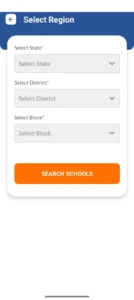
How to Use UDISE Plus App Login
The login process depends on the application and the user’s assigned role. A public school-search service, a GIS capture tool, and the school’s data-entry portal do not necessarily use the same login screen or access rules.
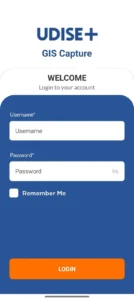
Login for GIS Capture
The official GIS Capture listing says that registered UDISE+ users can log in and that separate user registration is not followed.
If you are an authorized school or administrative user:
- Open the official GIS Capture app.
- Enter the credentials associated with your authorized access, as requested by the app.
- Follow the instructions displayed on the screen.
- Confirm that the correct school or assigned record appears.
- Continue only with tasks permitted for your role.
If the school does not appear, do not create a new account or choose another school’s record just to continue. Ask the relevant block or district MIS coordinator to verify your access.
Login for annual school data entry
For annual reporting, start at the official UDISE+ portal and navigate to the applicable reporting or profile module.
The official reporting pages state that the school UDISE code is used as the username in the relevant school reporting workflow and that the password is provided by the Block MIS coordinator. The exact process can depend on the module and account type.
If you have forgotten your password, use the official recovery option or contact your block or district MIS coordinator. Never share your password or OTP with someone claiming they can unlock the account through an unofficial app.
UDISE Plus App for Teachers: What Can Teachers Do?
The phrase udise plus app for teachers is often used broadly, but teachers do not automatically receive access to every function in the UDISE+ system.
A teacher’s responsibilities depend on the school, the state or union territory’s instructions, and the permissions assigned to the account.
A teacher may be asked to help verify information, prepare school records, check assigned data, or support a location-capture exercise. A teacher who is not authorized to submit or certify a record should not use another person’s credentials to complete the task.
Example: Preparing school information
Suppose a school has 12 teachers and the head teacher asks a staff member to help prepare the annual submission.
A sensible process is to:
- Collect the required information from authorized school records.
- Check names, counts, and other fields against the source documents.
- Identify any missing or inconsistent information.
- Submit the prepared details to the person responsible for official entry or certification.
- Retain a record of corrections according to the school’s procedures.
The number of teachers in this example is illustrative, not an official UDISE+ statistic.
The key principle is accountability: preparing information, entering information, and formally certifying information may be separate responsibilities.
UDISE Plus Geo Tagging: How School Location Capture Works
The term udise plus geo tagging refers to associating a school with geographical coordinates and, where required, supporting images.
Geographical coordinates identify a position using latitude and longitude. These coordinates help distinguish a school’s location from nearby buildings or other institutions.
The official GIS Capture portal describes a workflow in which submitted school locations and campus images are reviewed, verified, approved, or rejected by authorized officials.
What is the UDISE Plus app school location feature used for?
Accurate school location information can support:
- Finding schools on digital maps
- Checking whether a location matches the registered school
- Reviewing school distribution across administrative areas
- Supporting education planning and related public services
- Identifying location information that needs correction or verification
For example, two schools may have similar names in the same district. Accurate coordinates can help officials distinguish their locations.
Steps for capturing a school location
The precise screens may vary by app version and assigned role. The following is a general preparation process, not a claim that every screen appears in this exact order.
- Confirm the school record. Make sure the correct school and UDISE code are associated with your assigned task.
- Visit the correct location. If physical capture is required, confirm that you are at the school’s actual campus rather than a nearby road, office, or residence.
- Check location access. Enable the necessary device location setting and grant the app the relevant permission.
- Capture the requested information. Follow the app’s instructions for coordinates and any required school images.
- Review before submission. Check that the captured information relates to the correct school and that the images are clear.
- Follow the approval process. Check the status and respond to any correction request through the authorized workflow.
Do not change the location artificially or upload photographs of a different building to make a record appear complete.
UDISE Plus App Permissions: What Should You Allow?
The permissions requested by an app depend on its purpose and the functions you use. Review the permission prompt on your own device instead of assuming every installation needs the same settings.
For a location-capture task, location access may be necessary. A camera permission may be needed if the app captures photographs directly.
Before granting permission, ask whether it is relevant to the task.
Permission | Why it may be needed |
Location | To capture or verify geographical coordinates |
Camera | To photograph the school campus when required |
Photos or media | To select or access images, depending on the app’s design |
Notifications | To receive relevant status updates, if supported |
These are general Android permission examples, not a definitive list of permissions required by every UDISE+ application.
You can review permissions through Android’s app settings. If a required permission is denied, a particular feature may not work.
Also remember that permission to use a device feature does not prove that an app is official. Verify the developer and source before granting access.
Is There a UDISE Plus iOS App?
An iPhone user should not assume that every UDISE+ application has an iOS version or that an Android download link will work on an iPhone.
However, the official GIS Capture portal currently displays download options for both Android and iOS. This means iOS availability can be checked directly through the official portal rather than relying on third-party download websites.
For the Know Your School service, the official portal also provides an iOS app download option.
Use the official GIS Capture portal or Know Your School portal to check the appropriate link.
If an app is unavailable in your region or is incompatible with your device, use the relevant official web service where permitted. Do not install an Android APK on an iPhone or rely on an unofficial app with a similar name.
UDISE Plus Offline Mode: Can You Enter School Data Without Internet?
One of the most common questions about the UDISE+ mobile applications is whether school staff can enter information without an active internet connection. The answer depends on the application and the task being performed. Offline data entry, saving information locally, and submitting information to the official server are three different things.
The GIS Capture application is intended for school location and image collection, while annual school reporting is handled through the relevant UDISE+ reporting system. Do not assume that the mobile apps support offline entry of the full annual Data Capture Format (DCF).
The available official app descriptions do not establish that every reporting field can be completed offline. Check the current app instructions and your education department’s guidance before relying on offline functionality.
What does offline mode mean?
The term UDISE plus offline mode can describe several different situations:
- Offline preparation: Collecting information in a notebook, spreadsheet, or approved local template before entering it online.
- Local saving: Saving information on the device without sending it to the server.
- Offline capture: Using a feature that explicitly allows an app to collect certain details without internet access.
- Online submission: Sending the information to the official server and receiving a submission or status confirmation.
These functions are not interchangeable.
For example, a teacher may record classroom counts and available facilities while visiting a school building with poor connectivity. That is offline preparation. Unless the specific application confirms that it has saved those details locally, the teacher should not assume that the information entered into the app will remain available after the connection is lost.
Does GIS Capture support offline data entry?
The GIS Capture application is designed for capturing school locations and images. However, users should not assume that all its functions, including authentication, location submission, image upload, and final approval, will work without an internet connection.
Some functions may depend on network access or server verification. Whether particular information can be captured temporarily offline depends on the current application version and its implementation.
Before visiting a school in an area with poor connectivity:
- Open the official app while internet access is available.
- Confirm that you can sign in and access the assigned school.
- Read any instructions about saving or submitting captured information.
- Check whether the app explicitly supports offline capture.
- If offline capture is not confirmed, record the required information through an approved alternative and submit it when connectivity is restored.
Do not treat a photograph or a location displayed on the screen as proof that the information has been submitted. Look for a successful submission message or an updated status in the official system.
How to Prepare UDISE Plus Data Entry Without Internet
Even when the official reporting portal requires an internet connection, school staff can prepare much of the required information in advance. Good preparation reduces typing errors, repeated work, and last-minute pressure during the reporting period.
Step 1: Obtain the correct reporting instructions
Start with the official UDISE+ portal and the instructions provided by your block or district education office.
Confirm the reporting year, applicable DCF, required sections, submission deadline, and whether any fields or procedures have changed. A spreadsheet prepared for an earlier academic year may not match the current format.
Step 2: Collect information from approved school records
The exact records required depend on the applicable DCF. Common categories include:
- School identification and management details
- Student enrolment information
- Teacher and staff information
- Classroom and building facilities
- Drinking water and sanitation facilities
- Electricity, digital facilities, and other infrastructure
- Additional details requested in the current reporting format
Use the current instructions to determine which items apply. Do not collect personal or sensitive information beyond what the official process requires.
Step 3: Prepare a controlled worksheet
A spreadsheet can help organize information before entering it into the official system. Use clear column names, keep a record of the reporting period, and restrict access to authorized staff.
For example, a school might prepare a worksheet for the number of usable classrooms, drinking water availability, and other facilities. The figures should be checked against school records and verified by the responsible staff member.
A worksheet is a preparation tool, not an official UDISE+ submission.
Step 4: Check the figures before online entry
Use a second-person review where practical. Ask the reviewer to check the source records, calculations, and any inconsistencies.
For instance, if the number of enrolled students in a summary differs from the total of the relevant class-wise records, investigate the difference before entering the figure.
Avoid estimating missing values simply to complete a form. Follow the official instructions for fields that are unknown, not applicable, or awaiting verification.
Step 5: Enter and submit information online
When a reliable internet connection is available:
- Open the correct official reporting module.
- Sign in using the authorized account.
- Select the applicable reporting year and school record.
- Enter the verified information into the corresponding fields.
- Review the entries and resolve validation messages.
- Save or submit according to the module’s workflow.
- Confirm the resulting status before considering the task complete.
If the system allows saving a draft, use that facility as instructed. Saving a draft and completing the final submission may be separate actions.
Offline Preparation vs Online Submission: Key Differences
Task | Can it be done without the internet? | Important limitation |
Collecting information from school records | Usually yes | Follow official data-handling rules |
Preparing a spreadsheet | Yes | The spreadsheet is not an official submission |
Checking totals and correcting source records | Usually yes | Corrections must be based on verified information |
Signing in to an online portal | Usually requires internet | The service must authenticate the account |
Entering data into the online DCF | Generally requires internet access | Depends on the reporting module |
Capturing a location or photograph | Device capture may be possible | App-specific offline support must be confirmed |
Uploading information to the server | Requires connectivity | Confirm the server acknowledges the submission |
Receiving official approval | Usually requires the relevant online workflow | Approval depends on the authorized reviewer |
This distinction is useful for schools in remote areas, buildings with unreliable mobile signals, and staff working during busy reporting periods.
The practical approach is to prepare offline, validate carefully, and submit through the authorized system unless the official application explicitly provides another supported method.
UDISE Plus App Update: How to Keep the Application Working Properly
An outdated application can cause compatibility problems, unexpected errors, or difficulty using particular features. Keeping the app updated is a sensible maintenance step, especially when school staff must complete an assigned task within a reporting period.
The correct way to update the app is to use its official distribution channel.
How to update the Android app
- Open Google Play on your Android device.
- Search for the exact application name, or open the official link provided earlier.
- Check the developer name and the available version information.
- If an Update button appears, tap it and wait for installation to finish.
- Open the app and confirm that you can access the expected screen and assigned functions.
For example, the official GIS Capture Google Play listing shows an update dated May 2026 in the listing information available during this research. The Know Your School listing also records an update in April 2026. These dates are useful reference points, but they are not guarantees that the same versions remain current on every device.
Should you update during an active data-entry task?
If the app is working and you are in the middle of an important task, first confirm whether any unsent information needs to be preserved. Follow the official instructions for saving or submitting your work before updating.
An update should not be assumed to recover missing data or automatically submit an unfinished record.
Practical advice: Use a reliable internet connection for updates, avoid interrupting installation, and verify the status of any pending work afterward.
UDISE Plus App Not Working: Common Problems and Solutions
If the udise plus app not working issue occurs during school reporting or location capture, first identify the type of error. A login failure, a location permission problem, a network timeout, and a server-side issue require different solutions.
The following table provides a practical starting point.
Problem | Possible cause | What to try |
App will not open | Software issue or incompatible version | Restart the device and check for updates |
Login fails | Incorrect credentials or account access issue | Check the details and contact the authorized MIS coordinator |
School record is missing | Incorrect assignment or record mismatch | Ask the block or district office to verify the school assignment |
Location is inaccurate | GPS signal or device settings | Move to a suitable outdoor location and allow the device to obtain a better signal |
Camera does not open | Camera permission denied | Review the app’s permission settings |
Upload does not complete | Weak internet connection or server issue | Reconnect and retry according to the app’s instructions |
App closes unexpectedly | Temporary app or device problem | Restart the app and device, then check for an update |
Submitted record is not approved | Verification is pending or corrections are required | Check the official status and follow up with the reviewing authority |
These are general troubleshooting steps, not a claim that every error has the same cause.
1. Check your internet connection
Switch between Wi-Fi and mobile data if permitted. Open another trusted website to check whether the connection is working.
If other websites also fail to load, the problem may be your network rather than the UDISE+ application.
If the network is available but a submission fails, wait briefly and retry only after checking whether the previous attempt succeeded. Repeated submissions without checking status may create confusion.
2. Check date, time, and device settings
Make sure the device’s date and time are correct. Incorrect settings can interfere with some authentication and connection processes.
For location capture, check whether the device’s location service is enabled and whether the app has the required permission.
3. Restart the application
Close the app and reopen it. If the problem continues, restart the phone.
Before clearing app data or uninstalling the app, check whether any information is stored locally and whether it has been submitted successfully. Clearing data may remove locally stored information.
4. Check whether the service is available
Sometimes the issue is not with your phone. The service may be undergoing maintenance, or the portal may be temporarily unavailable.
Visit the official UDISE+ website or the GIS Capture portal to check the relevant service and available notices.
If the official service is unavailable, avoid installing a different application or giving your login details to someone who claims to offer an unofficial workaround.
5. Contact the appropriate support channel
For school reporting and access issues, the block or district MIS coordinator is often the appropriate first contact.
The official GIS Capture Google Play listing also provides application support details, including the support email address udiseplus.moe@gmail.com. Verify the current contact information on the official listing before using it.
When reporting a technical problem, provide:
- The application name
- Your device model and operating system version
- A description of the error
- The approximate time the error occurred
- The steps you took before the error appeared
- A screenshot with passwords, OTPs, and sensitive information hidden
Never include your password or OTP in a support request.
UDISE Plus Mobile App Data Entry: Best Practices for Schools
The quality of school information depends on more than the app itself. Correct records, careful checking, clear responsibilities, and proper submission procedures all matter.
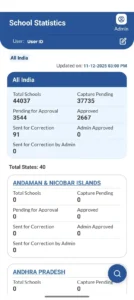
The official UDISE+ portal reports that the system covers 14.67 lakh schools, 24.72 crore students, and 1.02 crore teachers for academic year 2025–26. These are system-wide figures published on the portal, not statistics about mobile app users. They show why accurate school-level reporting matters for education planning across India.
Use the correct academic year
Always check which academic year is open for reporting. Do not assume that a previous year’s DCF or spreadsheet contains all the current fields.
For the 2026–27 reporting cycle, consult the latest notice on the official portal and follow the instructions issued by the relevant education department. Reporting dates and procedures can change, so an old blog post should not be treated as the final authority.
Verify information before entering it
Use the appropriate source records for each field. The exact records depend on the reporting instructions, but the general process should include:
- Checking the school identification details.
- Verifying enrollment totals against the relevant records.
- Reviewing staff information with the authorized school representative.
- Confirming infrastructure details.
- Resolving inconsistencies before submission.
- Reviewing the completed form before final certification.
Accuracy is more important than speed. A quickly completed form that contains incorrect information can create additional work during verification and may affect the quality of administrative reports.
Protect school information
Use authorized accounts and devices wherever possible. Do not share login credentials with colleagues through messaging groups, and do not upload student or staff records to unrelated third-party applications.
If you prepare information in a spreadsheet, restrict access and follow the school’s data-protection procedures. Delete temporary copies when they are no longer needed and when doing so is consistent with official record-retention requirements.
Final Checklist: Before Using the UDISE Plus Mobile App
Use this checklist before starting a school-related task.
School app readiness checklist
- Choose the correct official application for your task.
- Verify the developer and download source.
- Check the academic year and current reporting instructions.
- Confirm your authorized login credentials and school assignment.
- Review the required app permissions.
- Prepare and verify school information before online entry.
- Check whether the app explicitly supports offline capture.
- Confirm that the information has been submitted successfully.
- Check the approval status for location and image capture.
- Keep credentials and school records secure.
Conclusion
The UDISE Plus mobile app ecosystem helps make school information accessible and supports the collection of school locations and images. However, the right application depends on your task: Know Your School is for public school information, while GIS Capture supports geographical location and image collection. Annual school reporting must follow the relevant official reporting workflow.
For schools working in areas with unreliable internet access, the safest approach is to prepare information offline, verify it against approved records, and use the official system to enter and submit it. Never assume that an offline entry, photograph, or incomplete upload has been saved successfully.
Before downloading an app, resetting a password, or troubleshooting a submission, check the official UDISE+ website and follow the current instructions for your academic year and assigned role. Accurate data, secure access, and proper verification are what make the system useful for schools, teachers, parents, and education administrators.
Official References and Useful Links
- UDISE+ official portal: https://www.udiseplus.gov.in/ — school reporting, official notices, statistics, and related services.
- Know Your School: Official website | Google Play app — public school information.
- GIS Capture: Official portal | Google Play app — school location and image capture, with administrative review and approval.
- Google Search Central: Creating helpful, reliable, people-first content — guidance for producing useful content that answers readers’ questions directly.
FAQs
1. Is the UDISE Plus mobile app free to download?
The official Know Your School and GIS Capture applications are listed on Google Play without a stated purchase price. Check the official listing for the current availability and terms. Avoid websites that charge you to download an APK claiming to be the official app.
2. Which UDISE Plus app should a parent download?
Parents who want to check school information should start with Know Your School. The application is intended to make information such as school name, address, management type, medium of instruction, teachers, students, and infrastructure available to the public where the relevant records are provided.
It is not intended to replace a school’s admissions process or official recognition documents.
3. Can teachers complete the entire UDISE+ DCF through the mobile app?
Do not assume so. The GIS Capture app is intended for location and image collection, not as a confirmed replacement for the annual reporting system.
Teachers and school heads should use the official reporting module assigned to them and follow the current academic year’s instructions.
4. Can I use the UDISE Plus app without the internet?
Some preparation tasks, such as reviewing school records and preparing a worksheet, can be done offline. Whether the application itself supports offline capture depends on the app and the specific function.
Do not assume that information entered without a connection has been saved or submitted. Confirm the application’s offline instructions and check the final status when connectivity returns.
5. Is there a UDISE Plus app for iPhone?
The official GIS Capture portal provides an iOS download option, and the Know Your School portal also provides an iOS app option. Follow the official portal’s link for the relevant app rather than downloading software from an unrelated website.
6. Why is my school not appearing in GIS Capture?
Possible reasons include account permissions, school assignment issues, or a mismatch in the available school record. Confirm that you are using the correct authorized account and school identification details.
If the school remains missing, ask the block or district MIS coordinator to review the assignment. Do not create a duplicate record or select another school to bypass the problem.
7. What should I do if I forget my UDISE+ login password?
Use the recovery process provided by the relevant official portal or contact your authorized MIS coordinator. The process may vary by account type.
Do not use an unofficial password-reset service or share your credentials with a third party.
8. How do I know whether GIS Capture information has been approved?
The official GIS Capture portal supports reviewing, verifying, approving, and rejecting submitted location and image data. Check the status through the authorized workflow and respond to any correction request. A successful capture alone does not establish that the district-level approval has been completed.
9. Should I install an older version if the latest update has a problem?
Do not download an older APK from an unknown website. First try the normal troubleshooting steps and check the official app listing for support information.
If a recent update causes a persistent problem, report it through the official support channel or seek guidance from the responsible education authority.
10. Where can I find official UDISE+ instructions?
Start with the official UDISE+ portal. For school location and image capture, use the official GIS Capture portal. For public school details, visit the Know Your School portal.
These sources should take priority over outdated articles, unofficial APK websites, and social media instructions.

Hey, I am Sachin Ramdurg. I run and manage futuredecider.com website that helps students, graduates, and professionals, to find and decide on their future career with ultimate future career advices and future career guides. I have an overall 12+ years of career guidance experience in multiple domains which has helped multiple students, graduates, and professionals to find the best career path for their future.