
For school principals, teachers, and administrators, losing access to the school education portal can delay important data-entry work, school profile updates, and reporting activities.
If you are searching for UDISE plus forgot password reset school, the first step is to identify the correct login page and follow the recovery process provided for your particular UDISE+ module.
In many cases, the school must contact its Block or District Management Information System (MIS) coordinator for help with forgotten credentials or changes to registered details.
This guide explains how to recover access safely, what information to keep ready, and what to do when the usual recovery steps do not work.
What Is UDISE Plus and Why Are Login Credentials Important?
UDISE+ stands for Unified District Information System for Education Plus. It is India’s official school education data management system, maintained under the Department of School Education and Literacy, Ministry of Education, Government of India, with technical support from the National Informatics Centre (NIC).
The system collects information about schools, students, teachers, infrastructure, and other aspects of school education. Schools and education authorities use different modules to enter, manage, review, and access relevant information.
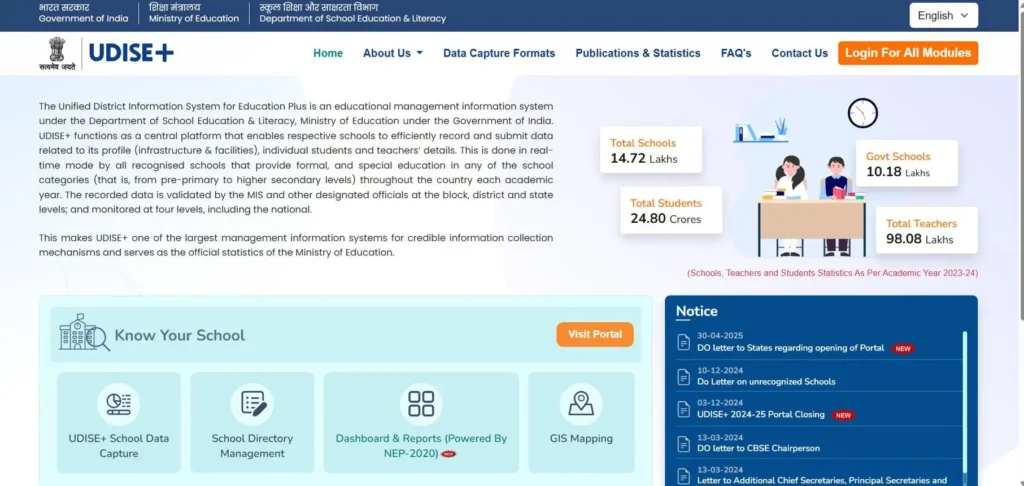
According to the official UDISE+ website, the system reported approximately 14.67 lakh schools, 24.72 crore students, and 1.02 crore teachers for academic year 2025–26. These figures illustrate the scale of the system and why reliable account access matters.
Source: udiseplus.gov.in
A school account is more than a username and password. It is an access point to information that may be needed for official reporting, school profile maintenance, and other administrative duties.
Who needs to reset their school credentials?
You may need to recover your account if you are:
- A school principal who cannot remember the password.
- A teacher or authorised school employee responsible for UDISE+ data entry.
- A school data-entry operator who has received an invalid password message.
- An administrator working with a school whose authorised staff have changed.
- A school representative who can no longer access the registered mobile number.
- An authorised user who has forgotten the username or is experiencing a login restriction.
For example, suppose a school administrator entered UDISE+ data last year but has since changed computers. The saved password is no longer available, and the administrator cannot remember the original credentials. In this situation, the appropriate recovery route depends on the module being accessed and the account details recorded by the education authorities.
Important: Do not create a second account or use another school’s credentials simply because your login is not working. First establish whether the problem concerns the password, username, registered contact information, or account status.
How to Reset a Forgotten UDISE Plus Password
The official portal provides login pages with a Forgot Password option for certain modules. However, the recovery procedure is not necessarily identical across every UDISE+ service.
For example, the official UDISE+ Reporting Module states that the school’s UDISE code is used as its username and directs school users to their Block or District MIS coordinator if they forget their username or password, or if their mobile number or other details change.
Source: udiseplus.gov.in
Therefore, before starting the UDISE plus password reset process, make sure you are using the correct module.
Step 1: Open the official UDISE+ portal
Visit the official UDISE+ website.
From there, select the relevant service or module. If you already know the direct login address for your school’s reporting or profile module, check that it belongs to the official UDISE+ domain before entering your credentials.
Do not rely on advertisements, unofficial websites, or links shared by unknown individuals. A page that looks similar to the government portal may not be an authorised login page.
Official portal reference
UDISE+ website: www.udiseplus.gov.in
Official sign-in page: auth.udiseplus.gov.in/login
The exact login page may depend on the service you need. Always start from the official portal if you are unsure which module applies to your account.
Step 2: Select the correct login module
UDISE+ offers different services, and their login arrangements may differ.
The following table can help you identify the right starting point.
Requirement | Recommended starting point |
School reporting and data entry | The relevant UDISE+ Reporting Module |
School profile and facilities | The relevant UDISE+ Profile Module |
School directory or user management | The official School Directory and User Management service |
Public school information and statistics | The official UDISE+ homepage and reporting pages |
Data-sharing account access | The separate UDISE+ Data Sharing Portal |
For reference, the official School Directory and User Management page directs users to continue securely with their UDISE+ account.
Source: udiseplus.gov.in
If you select the wrong service, a valid username and password may not work as expected. Confirm the module before attempting a reset.
Step 3: Click the “Forgot Password” option
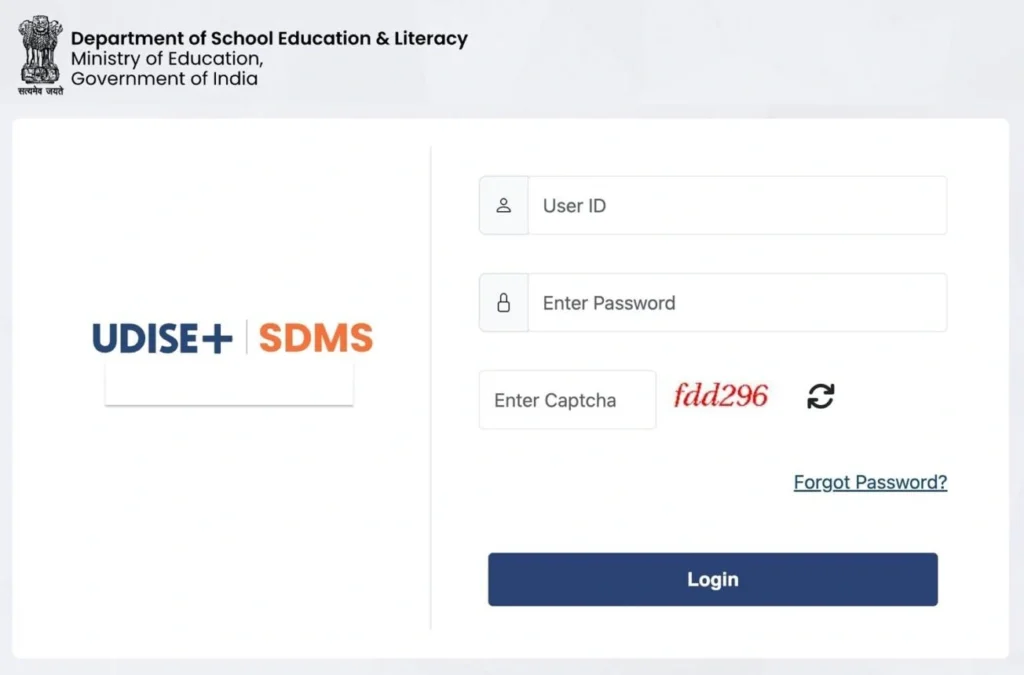
On a supported login page, look for Forgot Password or Forgot Password? near the sign-in fields.
The official UDISE+ sign-in page displays a password-recovery option.
Source: UDISE+
Select it and carefully read the instructions displayed on the next screen.
Depending on the service, the recovery process may ask you to identify your account, enter registered contact details, complete a CAPTCHA, or verify your identity. Follow only the fields and instructions that actually appear on your official login page.
Do not assume every UDISE+ module uses the same OTP-based reset process. Some school-facing modules direct users to the Block or District MIS coordinator instead.
Step 4: Enter the requested account details
If the recovery page asks for your username, enter the username associated with the correct school account.
In the official Reporting Module, the school’s UDISE code serves as the username. This instruction should not automatically be applied to every separate UDISE+ service, particularly where a module uses different account arrangements.
Source: udiseplus.gov.in
Before submitting the form, check for:
- Missing digits in the UDISE code, where applicable.
- Extra spaces before or after the username.
- Incorrect mobile number details, if requested.
- A CAPTCHA entered incorrectly.
- A login page belonging to a different module.
For example, if a school’s UDISE code contains 11 digits, entering only 10 digits can cause the system to reject the username. Check the school’s official records rather than guessing the missing digit.
Step 5: Complete the verification process
If the portal offers identity verification, complete the steps shown on the screen.
An OTP, or one-time password, is a temporary verification code. When a service uses OTP verification, the code must be entered according to the instructions displayed by that service.
If an OTP is not offered, do not search for an unofficial alternative or assume that you must use a mobile number from another account. Follow the module’s stated recovery procedure instead.
If the portal tells school users to contact the Block or District MIS coordinator, proceed through that authorised route.
Step 6: Set a new password if the portal allows it
If the official recovery process gives you the option to create a new password, follow the displayed password requirements.
Choose a password that is:
- Difficult to guess, without being impossible for you to remember.
- Different from your previous password.
- Not reused for your email or other important accounts.
- Stored securely rather than written in a publicly accessible register.
If the portal requires you to enter the new password twice, make sure both entries match. Save the changes only after checking that the form is complete.
If the recovery page does not allow you to create a new password, do not keep repeating the same steps. Your module may require assistance from an authorised MIS coordinator.
Step 7: Sign in again and confirm access
Once the password has been changed successfully, return to the correct login page.
Enter your username, new password, and any CAPTCHA or other information requested. If the login succeeds, confirm that you can reach the correct school account and module.
Do not make changes to school information merely to test whether the account works. Instead, check that the expected dashboard or school profile appears and that you have the permissions required for your assigned work.
If you still cannot sign in, record the exact error message and move to the troubleshooting guidance in Part 2 of this article.
What to Do If You Cannot Find the Forgot Password Option
One common problem is that a school administrator reaches a login page but cannot see a working password-recovery link.
This does not automatically mean the account has been disabled. The page may belong to a different module, may require a refreshed session, or may use a recovery process managed by an education authority.
Check the official login page again
Start from the UDISE+ homepage and open the correct service.
If the login page has been open for a long time, refresh it or reopen it in a new browser tab. Some official sign-in pages display a message that the login session has expired because of inactivity.
After reopening the page, check whether the recovery option is available.
Contact the Block or District MIS coordinator
For the Reporting Module, the official portal specifically directs school users to the Block or District MIS coordinator when they forget their username or password or need to update their mobile number or other details.
Source: udiseplus.gov.in
When requesting assistance, keep the following information ready:
- School name and UDISE code.
- District, block, and state.
- Name and role of the authorised person making the request.
- The module you are trying to access.
- A brief description of the login problem.
- The exact error message, if one appears.
Share only the information required through the authorised channel. Never send your current password or OTP to someone claiming to provide technical assistance.
Example: A principal cannot see the recovery link
Imagine that a principal opens a school reporting login page and enters the school’s UDISE code. The password field is visible, but the expected recovery option does not appear.
The principal should first confirm that the page is the correct Reporting Module, reopen the official login page, and check again. If recovery is still unavailable, contacting the Block or District MIS coordinator is more appropriate than creating a new account or trying another school’s login.
This approach reduces unnecessary attempts and helps ensure that the person responsible for the account can resolve the issue through the proper channel.
How to Recover a Forgotten UDISE Plus Username
A forgotten username can prevent you from accessing the school account even when you remember the password. Before trying different combinations, confirm which UDISE+ module you are using and check the account details recorded by your school or education authority.
For the UDISE+ Reporting Module, the official instructions identify the school’s UDISE code as its username. If you are using a different service, follow that service’s account instructions rather than assuming the same username applies everywhere.
Source: udiseplus.gov.in
Step 1: Check the school’s official records
Ask the principal, authorised school administrator, or previous data-entry operator to verify the school’s UDISE code.
You can also consult the school’s official records and the UDISE+ website.
Check the following details:
- The school’s full name.
- The state, district, and block.
- The complete UDISE code.
- The module you are trying to access.
Do not use a neighbouring school’s code or a code found on an unrelated website.
Step 2: Contact the Block or District MIS coordinator
If the username remains unclear, contact the relevant Block or District MIS coordinator. The official Reporting Module identifies these coordinators as the appropriate contact for forgotten usernames and passwords.
Source: udiseplus.gov.in
Explain that you need UDISE+ username recovery and provide the school’s identifying details through the authorised channel.
For example, a newly appointed principal may know the school’s name and location but may not have received the previous administrator’s login information. The principal should ask the relevant education authority to confirm the account details and the authorised process for restoring access.
Step 3: Avoid creating duplicate accounts
Do not register a new school account simply because the existing username is unavailable.
A school may already have an established account linked to its UDISE code and reporting history. Creating an additional account without authorisation can cause confusion and may not restore access to the original records.
The safest approach is to recover the existing account through the official procedure.
UDISE Plus OTP Not Received: Causes and Solutions
An OTP is a one-time password used by some online services to verify a user during sign-in or account recovery. If the UDISE+ module you are using offers OTP verification, the code may be sent to the contact details registered with that account.
However, OTP verification is not necessarily available in every UDISE+ recovery workflow. If your module directs you to a Block or District MIS coordinator, follow that procedure instead.
Why is the verification code not arriving?
Several issues can prevent an OTP from reaching the intended recipient.
Possible cause | What you should do |
Incorrect registered mobile number | Verify the contact details recorded for the account. |
Weak mobile network | Move to an area with better reception and try again. |
Delayed SMS delivery | Wait briefly before requesting another code. |
Expired OTP | Request a fresh code if the portal allows it. |
Too many requests | Stop repeated attempts and follow any waiting instructions displayed. |
Old or inactive SIM | Contact the relevant account administrator about updating the registered number. |
Different recovery method | Follow the instructions provided by your particular UDISE+ module. |
How to troubleshoot an OTP problem
- Check the registered phone. Make sure the number associated with the school account is active and can receive SMS messages.
- Wait for the message. Network delays can affect SMS delivery. Avoid requesting multiple codes within a short period.
- Use the latest code. If you requested more than one OTP, an earlier code may no longer be valid. Enter the most recent code according to the portal’s instructions.
- Check the screen for an error. Messages such as “invalid OTP,” “OTP expired,” or “maximum attempts exceeded” may require different actions.
- Ask the authorised coordinator for help. If the number is outdated or no code arrives after reasonable troubleshooting, contact the Block or District MIS coordinator when directed by the module.
Never share an OTP with someone who contacts you unexpectedly, even if they claim to be a school official or technical support representative.
How to Change the UDISE Plus Registered Mobile Number
Changing the mobile number associated with a school account requires care because the registered number may be used for verification, official communication, or account recovery.
If the previous principal or data-entry operator has left the school, the new administrator may discover that verification messages are still being sent to the former employee’s phone.
In such cases, the school should use the authorised procedure to update the contact details rather than attempting to bypass the existing verification process.
When should a school update its registered number?
A school may need to change its registered mobile number when:
- The previous principal or authorised employee has left.
- The registered SIM card has been lost or deactivated.
- The number was entered incorrectly.
- The school has changed its authorised account contact.
- The previous account holder is no longer responsible for UDISE+ work.
Steps to request a mobile number change
Step 1: Confirm the account details.
Identify the school, UDISE code, relevant module, and currently registered contact details, if known.
Step 2: Contact the appropriate education authority.
For the Reporting Module, the official instructions direct users to the Block or District MIS coordinator for changes to registered mobile numbers and other account details.
Source: udiseplus.gov.in
Step 3: Explain why the change is necessary.
State whether the previous number is inactive, belongs to a former employee, or was entered incorrectly.
Step 4: Complete the required verification.
The coordinator or relevant authority may ask for information to establish that the request comes from an authorised school representative. Follow the procedure communicated through official channels.
Step 5: Test the updated contact details.
Once the change has been confirmed, use the module’s supported recovery method to check whether verification messages reach the correct number.
Example: The former principal’s number is registered
Suppose a school appoints a new principal in October. The school’s UDISE+ account is still associated with the previous principal’s mobile number, and the new principal cannot complete an available OTP-based recovery process.
The new principal should contact the relevant Block or District MIS coordinator, explain the change in school administration, and ask for the authorised procedure to update the registered number. The school should not try to access the former principal’s personal messages or use the person’s private account without permission.
Important: The exact documents and approval requirements for a mobile number change may differ by module and state or district procedure. Confirm the current requirements with the responsible education authority before submitting documents.
UDISE Plus User Locked: What to Do When Login Is Blocked
Repeated unsuccessful login attempts may lead to temporary restrictions on some online systems. A user may also encounter an access-denied message because the account is inactive, the session has expired, or the module has a separate access-control rule.
A message indicating that the UDISE+ user is locked should be treated as an account-status issue rather than simply another forgotten-password problem.
The exact cause cannot be determined from the phrase alone. Read the full error message and follow the instructions displayed on the official page.
Common reasons for a locked or restricted account
- Several incorrect password attempts.
- An account that requires administrative verification.
- An inactive or outdated account.
- A session or browser problem.
- A temporary restriction imposed by the service.
- A change in the school’s authorised user or account details.
These are general possibilities, not confirmation that every UDISE+ module uses the same account-locking policy.
Steps to resolve the issue
- Stop repeated login attempts. Entering different guessed passwords may make troubleshooting harder and could trigger additional restrictions.
- Record the exact message. Note whether the portal says “account locked,” “invalid credentials,” “access denied,” or “session expired.” These messages do not necessarily mean the same thing.
- Reopen the correct official module. If the message concerns an expired session, open a fresh session and sign in again.
- Use the authorised recovery procedure. If password recovery is available, follow the on-screen instructions. Otherwise, contact the relevant Block or District MIS coordinator.
- Request an account-status check. If the account remains inaccessible, explain the error and ask the authorised coordinator to confirm whether the account is locked or requires administrative action.
What if the school has an urgent reporting deadline?
Suppose a school has to complete a data-entry task before a reporting deadline, but its account is locked. The administrator should contact the relevant coordinator promptly and explain both the login problem and the deadline.
Keep a record of the date, error message, and support request. Do not attempt to bypass access restrictions by using another school’s credentials or sharing accounts among staff.
This approach protects school data and helps the responsible authority identify the correct solution.
Common UDISE Plus Login Errors and How to Fix Them
Not every login failure requires a password reset. Sometimes the problem is caused by a typing mistake, an expired browser session, an incorrect CAPTCHA, or confusion between two different UDISE+ services.
Before contacting support, identify the exact error and try the relevant solution below.
Error or problem | Possible reason | Recommended action |
Invalid username | Incorrect UDISE code or wrong module | Verify the school code and login page. |
Incorrect password | Typing mistake or outdated password | Check the password and follow the authorised recovery procedure. |
CAPTCHA error | Incorrect or unreadable CAPTCHA | Refresh the CAPTCHA if the page allows it and enter the new value. |
Login page expired | Session timed out | Refresh the page and sign in again. |
OTP not received | Network delay or outdated contact details | Check the registered number and follow the module’s recovery instructions. |
Account locked | Possible account restriction | Stop repeated attempts and contact the authorised coordinator. |
Access denied | Permission or account-status issue | Ask the relevant administrator to check access. |
Dashboard not loading | Browser, session, or technical issue | Reopen the official portal and try another updated browser. |
Fix an incorrect CAPTCHA
CAPTCHA is a security check that helps a website distinguish ordinary users from automated requests.
If the CAPTCHA is difficult to read, use the refresh or audio option if available. Check the characters carefully before submitting the form.
Avoid repeatedly submitting the same incorrect CAPTCHA. If the problem continues, reopen the login page and try again.
Fix an expired login session
An expired session means the portal no longer considers the previous login page active. This may happen when the page has been idle for a long time.
Open the official sign-in page again, complete the CAPTCHA, and enter your credentials. If the portal continues displaying an expired-session message, try a fresh browser session.
For example, the official UDISE+ account login page may display a message that the login page has expired due to inactivity. This is a reason to refresh the page, not proof that the account has been locked.
Source: UDISE+
Fix browser-related problems
If the official portal does not respond correctly, try these basic checks:
- Use an updated browser such as Chrome, Edge, Firefox, or Safari.
- Check that your internet connection is stable.
- Close old UDISE+ login tabs and open a fresh one.
- Clear the browser cache if the page continues behaving incorrectly.
- Temporarily disable browser extensions that may interfere with the page.
- Check whether the problem occurs on another trusted device.
Do not install unknown software or browser extensions that claim to reset your school password automatically.
UDISE Plus Login Help: How to Contact the Right Authority
When ordinary troubleshooting does not work, the next step is to seek help through an authorised education department contact.
The correct support channel depends on the service you are using. The Reporting Module specifically advises school users to contact the Block or District MIS coordinator for forgotten credentials and changes to mobile numbers or other details.
Source: udiseplus.gov.in
Where should you ask for help?
- Block MIS coordinator
A suitable first contact for school reporting account problems, forgotten credentials, and registered-detail changes where the module directs users to this role.
- District MIS coordinator
Contact the district-level coordinator if the block-level route is unavailable or you are directed to district support.
- State or Union Territory education department
Use the appropriate state-level channel when the issue requires higher-level approval or the local coordinator cannot resolve it.
How to find the UDISE Plus helpdesk number
If you are searching for a UDISE Plus helpdesk number, first visit the official UDISE+ website and check its current contact information, notices, and relevant module instructions.
You can also ask your Block Education Office or District Education Office for the current contact details of the officer responsible for UDISE+ support.
Do not rely on an unverified phone number published on a random blog or social media post. Contact details may change, and a number listed for one module may not provide support for another.
The same caution applies to the UDISE Plus support email. Use an email address published by the relevant government department or official portal rather than guessing an address from the website name.
What information should you include in a support request?
A clear request helps the support team understand the issue without unnecessary back-and-forth communication.
Include:
- School name and UDISE code.
- State, district, and block.
- Your role at the school.
- The name of the module you are trying to access.
- The error message displayed on the screen.
- The approximate date and time the problem occurred.
- The troubleshooting steps you have already tried.
Do not include your password, OTP, or unnecessary personal information. If a screenshot is required, remove any student information, personal phone numbers, or other sensitive details that are not needed to diagnose the problem.
Sample email for requesting account assistance
Use the following draft if your school needs to contact an authorised coordinator by email. Replace the placeholders with accurate information before sending it to a verified official address.
Dear Sir/Madam,
I am writing on behalf of [School Name], UDISE Code [UDISE Code], located in [Block, District, State].
We are currently unable to access our UDISE+ account because of the following issue:
Problem: [Forgotten password / Forgotten username / OTP issue / Registered mobile number change / Account locked]
Module: [Name of the UDISE+ module]
Error message: [Enter the exact message displayed, if any]
We have checked the login details and attempted the available troubleshooting steps, but the issue remains unresolved.
Kindly guide us through the authorised procedure for recovering the account or updating the registered details. Please let us know if any verification or supporting documents are required.
Thank you for your assistance.
Yours faithfully,
[Name]
[Designation]
[School Name]
[Official Contact Details]
This format is useful because it identifies the school, describes the problem, and requests a specific action without exposing confidential credentials.
How to Keep Your UDISE Plus Account Secure After a Password Reset
Recovering access is only the first step. Schools should also ensure that their account details remain accurate and that login credentials are handled responsibly.
UDISE+ supports the collection and management of information about school profiles, students, teachers, and facilities. The official portal describes a system in which information is entered by schools and validated through designated education authorities.
Source: udiseplus.gov.in
Because the information is used for education administration and planning, account security and data accuracy should be treated as part of routine school management.
Follow these password security practices
- Create a strong password that is difficult to guess.
- Avoid using the school’s name, UDISE code, or a predictable date as the password.
- Never reuse a password from your personal email or social media account.
- Do not share credentials in public messaging groups.
- Store login information in an approved, secure location.
- Change credentials when an authorised handover or security concern requires it.
- Sign out after completing work on a shared computer.
- Never give an OTP to an unknown caller or message sender.
If your school uses a shared computer for reporting, make sure the browser does not automatically save the password in a profile that other people can access.
Maintain a proper account handover process
When a principal, teacher, or data-entry operator leaves the school, the authorised administrator should confirm who is responsible for UDISE+ access.
A good handover process includes:
- Identifying the authorised person who will manage the account.
- Confirming the correct school code and login module.
- Updating registered contact details through the approved process when necessary.
- Checking that the new administrator can access the required service.
- Removing unnecessary access in accordance with the module’s procedures.
- Keeping a record of the handover without recording passwords in open documents.
For example, if a data-entry operator changes jobs, the school should not depend on the former employee’s personal phone number or saved browser password. The school should confirm its authorised account arrangements and request changes through the appropriate education authority.
UDISE Plus Password Reset: Important Differences Between Modules
One source of confusion is that UDISE+ contains more than one service, and the password-reset process can depend on the account type.
A user who successfully accesses one service may still need separate instructions for another.
UDISE+ service | What users should know |
Reporting Module | The school’s UDISE code is the username; the official page directs school users to the Block or District MIS coordinator for forgotten credentials and registered-detail changes. |
Profile and Facilities Module | The official login page identifies the UDISE code as the username and directs users to the Block or District MIS coordinator for account assistance. |
School Directory and User Management | Access is through the official UDISE+ account system; follow the relevant service’s login instructions. |
Data Sharing Portal | This is a separate service for data requests and downloads, with its own login and reset-password pages. |
These distinctions are supported by the respective official portal pages.
Source: udiseplus.gov.in
Special note about the Data Sharing Portal
The UDISE+ Data Sharing Portal provides a separate service for data requests and downloads. Its official pages include a reset-password form and OTP-based login or verification options.
Source: microdata.udiseplus.gov.in
If your account belongs to this portal, follow the instructions displayed there rather than assuming that the Reporting Module’s process applies.
This distinction matters particularly for researchers, education professionals, and other authorised users who access data-sharing services rather than the school’s regular reporting account.
Practical Checklist for Recovering School Login Access
Use this checklist when your school cannot access its UDISE+ account.
School account recovery checklist
- Open the official UDISE+ website.
- Confirm the correct login module.
- Verify the school’s UDISE code and username.
- Check the exact error message.
- Use the available official recovery option.
- Check the registered mobile number if verification is required.
- Contact the Block or District MIS coordinator when directed.
- Provide school details through an authorised channel.
- Never share passwords or OTPs.
- Confirm that access has been restored before continuing school reporting.
Official References and Useful Links
For accurate and up-to-date information, use official government sources wherever possible.
The main portal for school education information, official services, notices, and access to relevant modules.
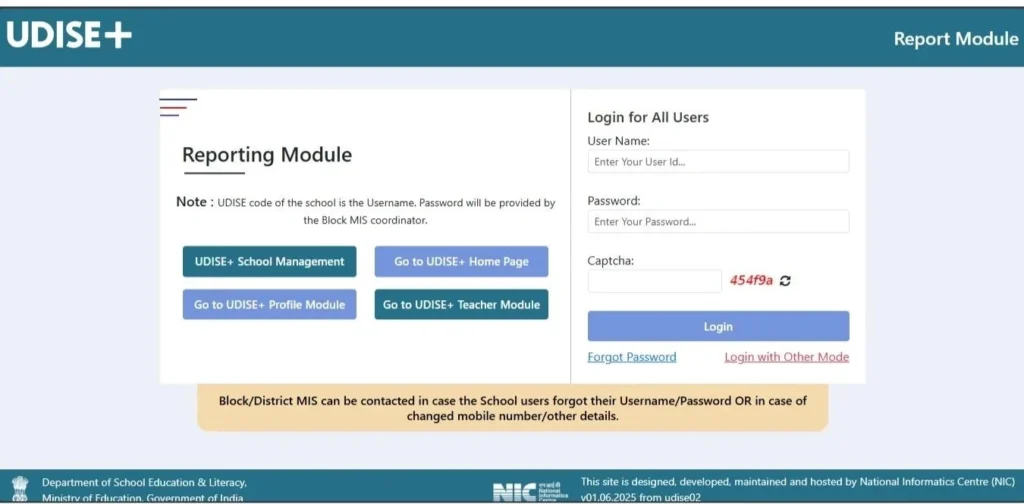
Useful for checking the school username guidance and the instructions for contacting Block or District MIS support.
School Directory and User Management
Provides access to the school directory and user management service.
A separate service for authorised data requests and downloads, with its own account and recovery options.

Ministry of Education, Government of India
The central government source for education policies, reports, publications, and departmental information.
These references are intended to help readers reach the relevant official service. Portal layouts, contact details, and recovery procedures can change, so check the current instructions before acting.
Conclusion
Forgetting a UDISE+ password can interrupt important school administration work, but the solution begins with identifying the correct module and following its authorised recovery process. For the Reporting Module, the school’s UDISE code is the username, and the official guidance directs school users to their Block or District MIS coordinator for forgotten credentials and changes to registered details.
If you encounter an OTP problem, a missing recovery option, an outdated mobile number, or a locked account, avoid repeated guesses and unofficial shortcuts. Record the error, verify your school details, and contact the appropriate education authority when necessary.
Most importantly, protect your school’s account information and keep its authorised contact details up to date. Secure access, accurate records, and timely support help schools maintain their UDISE+ work with fewer unnecessary delays.
FAQs
How can I reset my UDISE Plus password?
Visit the official UDISE+ website and open the correct login module. If a password-recovery option is available, follow its instructions. For the Reporting Module, the official guidance directs school users to their Block or District MIS coordinator if they forget their username or password.
What is the username for UDISE Plus school login?
For the official Reporting Module, the school’s UDISE code is the username. The Profile and Facilities Module also identifies the UDISE code as the username. Always confirm the instructions for the particular service you are accessing.
Can I reset my password without a registered mobile number?
It depends on the module and its recovery process. If the service provides another authorised recovery route, follow its instructions. If the Reporting Module directs you to the Block or District MIS coordinator, contact that coordinator rather than trying to bypass verification.
What should I do if I forgot my UDISE password and username?
Check the school’s official records for its UDISE code and confirm the correct module. If you cannot identify or recover the credentials, contact the Block or District MIS coordinator. Do not create a duplicate school account without authorisation.
Why am I not receiving my UDISE Plus OTP?
Possible reasons include network delays, an inactive registered number, an expired code, or a problem with the selected service. Check the registered number and follow the instructions on the official page. Remember that not every UDISE+ module uses OTP-based password recovery.
How can I change my UDISE Plus registered mobile number?
For the Reporting Module, the official guidance directs school users to the Block or District MIS coordinator when their registered mobile number or other details change. Explain the reason for the update and follow the authorised verification process.
What should I do if my UDISE Plus user is locked?
Stop repeated login attempts, record the exact error message, and check whether the problem is related to an expired session or an account restriction. If the account remains inaccessible, contact the authorised coordinator for an account-status check.
Is the UDISE code the same as the password?
No. For the Reporting Module, the UDISE code is the username. The password is a separate credential provided through the authorised account process. Do not enter the UDISE code in the password field unless a specific official instruction explicitly requires it.
Can a teacher reset the school’s password?
That depends on the teacher’s authorised role and the module’s procedures. A teacher responsible for data entry should follow the school’s approved account-management process. If the system directs school users to an MIS coordinator, the teacher should seek assistance through that channel.
What is the official UDISE Plus helpdesk number?
Use the contact details published by the official UDISE+ portal or your state, district, or block education authority. This article does not provide an unverified helpdesk number because contact details can change and the correct support channel depends on the service.
Is there an official UDISE Plus support email?
Check the official UDISE+ website and the relevant education department’s contact information for a verified email address. Do not assume that an email address is official simply because it contains the words “UDISE Plus.”
Can I access UDISE Plus from outside India?
The official UDISE+ portal is an Indian government education information system. Users located in the United States or another country can try accessing the public website online, subject to normal internet and service availability. However, access to school accounts remains subject to the relevant account permissions and official procedures.
Does resetting a password change the school’s UDISE code?
A password reset does not, by itself, change the school’s UDISE code. The code identifies the school, whereas the password is an account credential. School identity or code-related changes must be handled through the appropriate official process.
How long does a UDISE Plus password reset take?
There is no single verified turnaround time that applies to every module and every school. An available self-service process may be quicker than a request requiring administrative verification. If your school has an upcoming reporting deadline, contact the authorised coordinator as soon as possible.
Should I share my password with a UDISE Plus support representative?
No. Do not share your password or OTP with someone who requests it through an unsolicited call, message, or email. Use the official recovery procedure and provide only the information required to verify your school’s request.

Hey, I am Sachin Ramdurg. I run and manage futuredecider.com website that helps students, graduates, and professionals, to find and decide on their future career with ultimate future career advices and future career guides. I have an overall 12+ years of career guidance experience in multiple domains which has helped multiple students, graduates, and professionals to find the best career path for their future.